
II. Running the Simulation
A. How to Begin the Simulation
To start the simulation you must have a Map Selected and the Number of Locations Selected. (Questions can also be Selected, but are Optional). To Begin press the Start Button (Like the one below:
After pressing Start, the Toolbar will change, and it will ask you to click on a location.

1)Move your mouse pointer onto the Map, (You should notice it
is now a Cross-Hair  instead of a pointer.)
2)Press the Left Mouse button on the map where you think the place is located.
--A red (If
questions are selected) or green
(If
questions are selected) or green (If no questions are selected) rectangle
should appear on the map where you clicked on the mouse.
(If no questions are selected) rectangle
should appear on the map where you clicked on the mouse.
3) Using the Back Button
After you have entered a location by clicking on the map (If you did not select any Questions) the Toolbar will ask you for the next location. If you want to re-Enter the location you just entered, Click on the Back Button on the Toolbar.

After you click on the Back Button, the Location that was previously entered will disappear, and you can enter where you think it should be placed.
If you selected any questions when you were setting up the simulation, after you click on a location, a window will appear like the one below
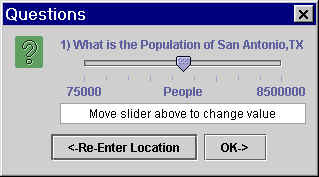
If you would like to re-enter the location, Click the  Button.
(Note - this will reset all of your answers for all of the Questions in this window)
If you would like to change the value of the answer, click on
the Slider Bar Pointer
...and drag left or right, until, the number which appears in the box below the slider is how you would like to answer the question.(Below the population of Richmond Virginia is set to 5990462 people)
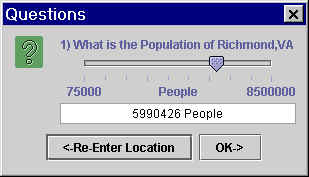
(Note- If you do not move the slider bar, the question will be assumed to be unanswered)
(Note- If you selected multiple questions, there will be multiple slider bars.)
When you are satisfied with the answer(s) given, Click on the  button.
D. Restarting the Simulation(with the Same Settings)
If you want to start the entire simulation over
using the same settings as were selected, click on the  button.
E. Restarting the Simulation (With New Settings)
If you would like to choose a new map in the middle of the simulation, simply use the drop down menu to select the new map, (This will end the current simulation) and you can modify the Number of Locations and Questions as you see fit. (Questions default so that none are selected) Press the
button to
begin the new simulation
If you would like to keep the same map, but modify the Locations and/or Questions, switch to a different map by using the Map drop-down menu, and switch back to the frist map using the drop down menu again.